
What is an Affinity Diagram?
If you’re a regular reader of the EasyRetro blog, you know how passionate we are about visualizing ideas and workflow. Creating at-a-glance boards makes teamwork effortless as everyone can see the game plan and what stages are left to complete. So, it’ll come as no surprise that we love to visualize our brainstorming sessions too!
We all know how chaotic brainstorming sessions can be, right? But once everything’s up on the board and the ideas are linked up, you remember why it’s such a useful tool to use. You may have already noticed our free online brainstorm tool l, which offers up an ideal solution for remote working, but today we’re going to talk about Affinity Diagrams.
An affinity diagram is a simple and effective tool that helps you organize your ideas, allowing your team to spend less time connecting the dots and more time on actually developing the product.
You can host an affinity diagram online or in person and apply it to almost any type of data, making it one of the more flexible brainstorming techniques. The affinity diagram is based on “affinity grouping”, which is something we see nearly every day. When you walk into a store to find all the cooking sauces and spices in the same location, or you see herbal teas and different coffees being sold in the same section, that’s affinity grouping. It’s all about taking similar items and partnering them up.

When can I use Affinity Diagrams?
Brainstorming sessions can be a fountain of brilliant ideas, but with all that creativity flowing it’s easy to wind up feeling overwhelmed rather than inspired. This is when affinity diagrams work their magic.
Visually linking — or “clustering” — ideas to each other helps the team digest all the ideas from the session in a sensible order. A completed affinity diagram can chart a course through complex projects that allows sprint teams to efficiently move forward.
You’ll also find that affinity grouping plays a large part in how you schedule your upcoming sprints. Similar ideas and tasks such as designing UX elements will all be grouped together, giving a rough estimation of how much time needs to be allotted to each stage of the project.
Benefits of an Affinity Diagram
There’s not much that could go wrong when using affinity diagrams as they essentially bring common sense to the messy process that is brainstorming. It’s an amazingly simple tool with plenty of benefits.
Organization made easy
An affinity diagram is a valuable organizational tool that breaks up a project into sections that are easier to manage. Clustering ideas into subdivisions means the whole team knows exactly what the idea relates to and how it may work within the overall project. It also makes scheduling your next sprint far easier as you know which areas require the most resources.
Inclusive
Affinity boards are about organizing ideas, not dismissing them. A good brainstorming session is one that everyone has equal say in what goes up on the board. These kinds of meetings could lead to confusion and chaos, but the affinity diagram easily clears up most issues that might crop up during a regular brainstorming session.
Team members who are normally quiet during sessions can feel more confident and ready to offer up suggestions. And thanks to the visual nature of the exercise, everyone can see the context for the idea straight away. Incorporating affinity diagrams in brainstorming sessions make the team feel at ease and can turn an often-stressful meeting into a light, fun affair.
Collaborative
An affinity grouping session offers the team a much better experience than a regular brainstorm meeting. Members are encouraged to discuss ideas in order to place them in the correct group rather than just spouting an idea and moving on to the next.
A more interactive session such as this builds team morale, camaraderie and confidence as the ideas evolve and connect in the flow of conversation.
How to create an Affinity Diagram
So now you know affinity diagrams are a nice, easy way to take ideas from a brainstorming session and cluster them into relevant sections ready for the next sprint, how can you incorporate them into your workflow? Well, as with most things in development, it’s not quite as simple as you may think. So, let’s look at how to set up an affinity diagram using EasyRetro and see how we can improve your brainstorming in the office or in a remote working situation.
Step one:
After your brainstorming session, gather all of the ideas and make a card for each suggestion. Select one card at random to form your first group.
Step two:
Select a second card and ask the team if it relates to the first one in any way. If so, add it to the design column. If not, place the card somewhere else to create a new column/group.
Step three:
Repeat step two until all the ideas have been sorted. Continue to add columns for new groups if the idea doesn’t match an existing group. You may end up with more groups than you expected, but that’s OK, we’ll work on finding links between the groups shortly.
Step four:
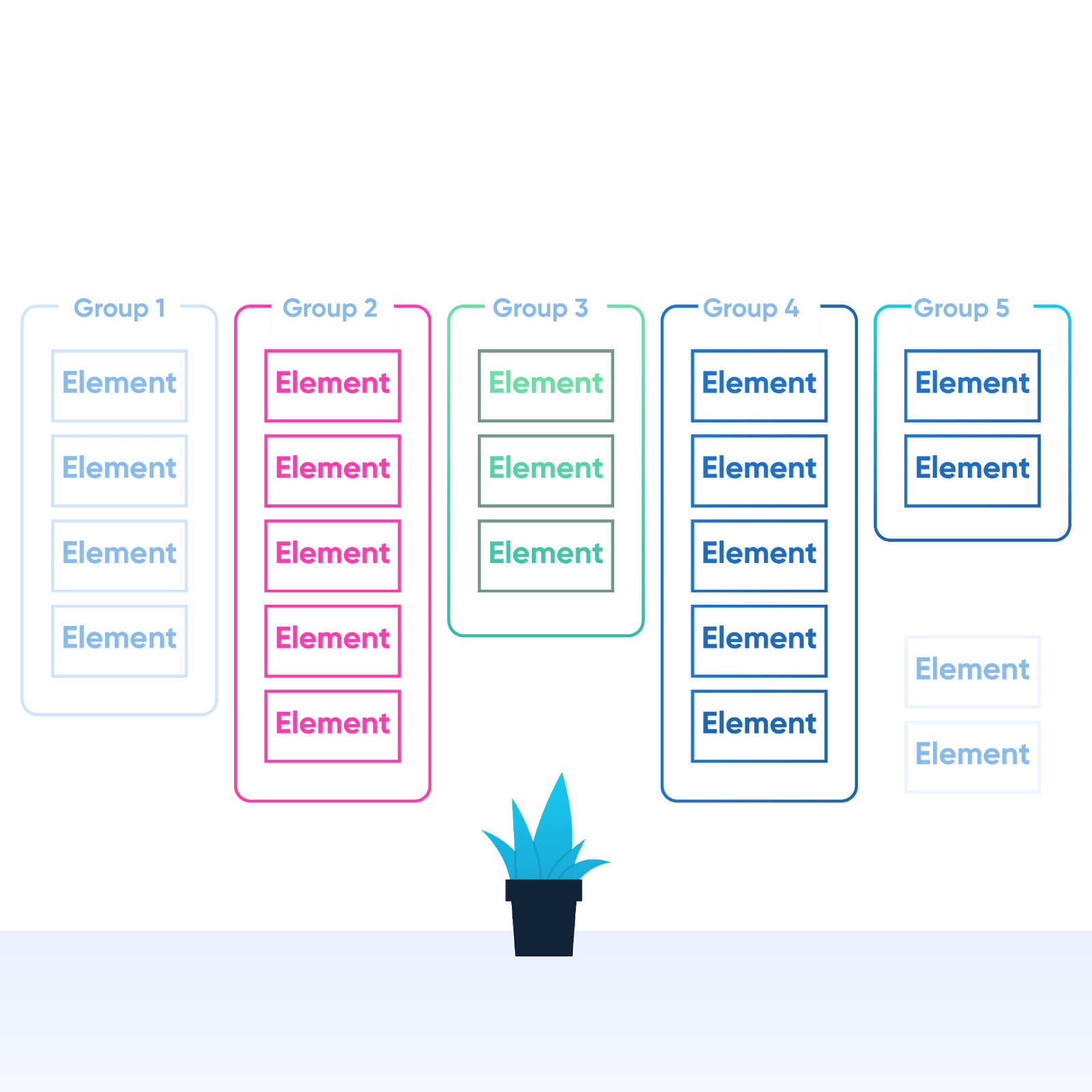
Add some more order to the chaos by naming each of the groups you have created, e.g. “design tasks”, “”product enhancements” or “user feedback”.
Step five:
Being able to identify priority tasks is key to a successful sprint. Thankfully, this step is easy now you’re looking at a brilliantly organized affinity diagram.
A quick glance at your group columns will let you know if one group needs more attention than another. You should also consider the complexity of tackling each group, and assign resources according to their importance and difficulty.
Step six:
Create a little more efficiency by looking for links between the groups. You might find no correlation between any of your columns, but if you can identify similar groups, you may be able to integrate the tasks between one section of your team rather than taking up extra resources with two separate groups.
Step seven:
As a team, describe the picture you have created and identify themes within the groups. This may link with the previous step as you find which groups share an affinity with the others.
Step eight:
Now you have all the ideas nicely laid out, you should already be seeing a rough roadmap for the upcoming sprint. All that’s left is to translate the board into an action plan by assigning task groups to the most suitable individuals or groups.
EasyRetro has you every step of the way
As we start moving back into the office, it’s time to think about moving your resources from the internet back into real life. Don’t panic though, there’s no reason to panic or stress. With EasyRetro you can create affinity diagrams online or in the office easily, and maximize the impact of your brainstorming sessions.